
How to Embed Video in Canva (Fast & Easy Guide for 2026)
Learning how to embed video in Canva sounds like a piece of cake, but people are often looking for different things. Some want to add a YouTube clip to a school presentation, while others want to upload their own MP4 video. Some need a moving background for a Canva website, and others want a quick product demo inside a digital portfolio. Searching for just one word can get confusing because the real fix depends on your goal. This happens to beginners, teachers, and creators every single day.
But after making tons of projects, one thing is completely clear: motion catches people’s attention fast. Adding a video can explain your ideas quicker and make your graphics look high-quality. This guide will show you how to embed video in Canva the easiest way, fix common upload errors, and use clips properly.
Quick Answer
To embed video in Canva, open your design, then either upload your own video, use a supported app like YouTube, or add video through available embed options. Place the video on the canvas, resize it, and export or share your design. This is the fastest way to add videos to presentations, websites, proposals, and social content.
If you also use Canva for presentations, websites, and social content, these related guides can help you build and improve your designs:
- How to Add Links in Canva (Fast & Easy Guide for 2026)
- How to Create Instagram Carousel in Canva (2026): Beginner Guide to Posts That Get Swipes, Saves, and Shares
- How to Change Page Orientation in Canva (Fast & Easy Guide for 2026)
- How to Make Background Transparent in Canva (Fast & Easy Guide for 2026)
Best Ways to Embed Video in Canva
| Method | Best For | Difficulty | Why It Works |
| YouTube Embed | Presentations | Easy | Fastest external method |
| Upload Own Video | Branding | Easy | Full control |
| Canva Stock Video | Quick Designs | Easy | Ready-made content |
| Website Video | Landing Pages | Medium | Better engagement |
| Mobile Video Add | Phone Users | Easy | Quick edits |
What “Embed Video in Canva” Usually Means
Different users mean different things.
1. Add a YouTube Video
Useful for tutorials, demos, and education.
2. Upload Your Own Video
Best for brand videos, client clips, and product demos.
3. Add Video to Presentations
Great for meetings and training slides.
4. Add Video to Canva Website
Useful for landing pages and business websites.
Knowing the real intent helps solve the problem faster.
How to Embed Video in Canva on Desktop
This is the easiest method for most users.
Step 1: Open Your Design
Create a new design or open an existing one.
Step 2: Choose Your Video Source
Use one of these:
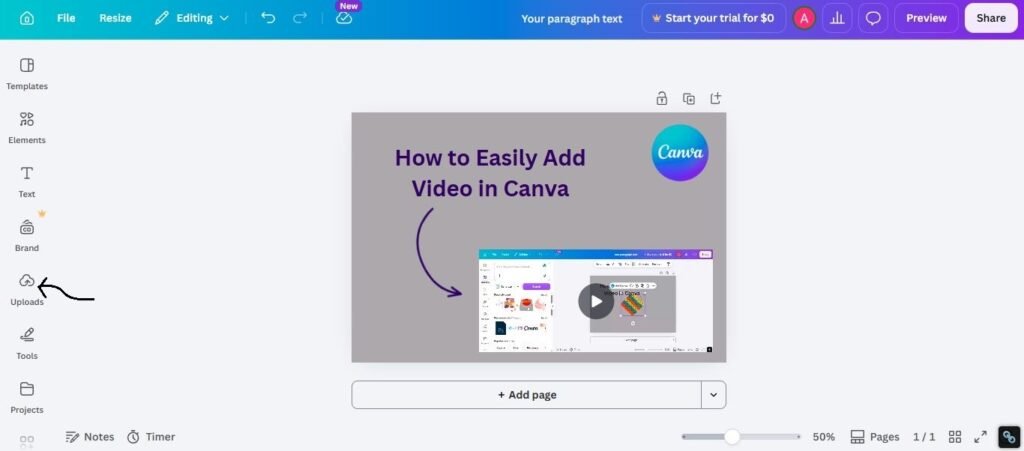
- Upload your own video
- Use YouTube integration
- Use Canva stock video
- Use available embed tools
Step 3: Add the Video
Insert the video into your page.
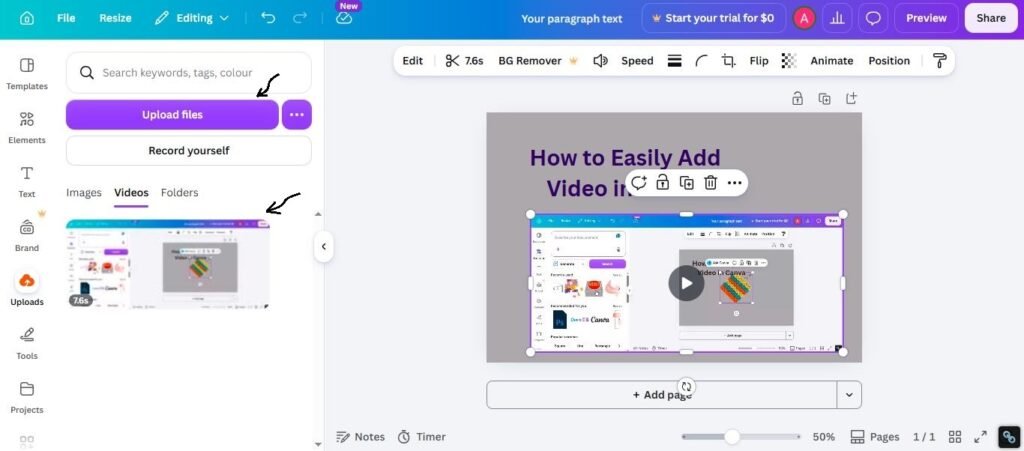
Step 4: Resize and Position
Adjust the video frame to fit the layout.
Step 5: Preview the Design
Check playback and spacing.
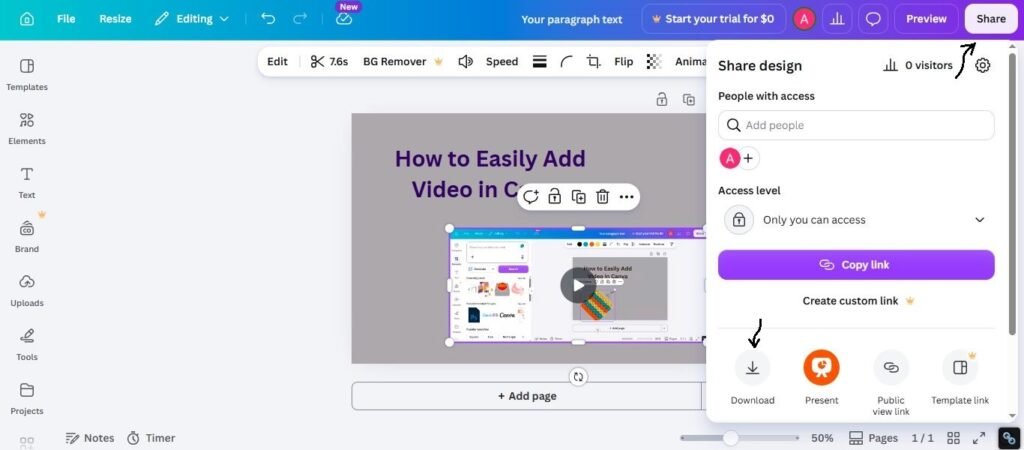
Step 6: Share or Export
Use the right output for your project.
How to Embed YouTube Video in Canva
This is one of the most common use cases.
Best For:
- Tutorials
- Product explainers
- Training slides
- Case studies
- Educational content
Quick Method:
- Open Canva
- Find YouTube app or embed option
- Paste video link
- Add to design
- Resize and test playback
How to Upload Your Own Video in Canva
Best when you want full control.
Great For:
- Brand intros
- Product demos
- Testimonials
- Event promos
- Client presentations
Steps:
- Upload MP4 or supported file
- Add to canvas
- Trim if needed
- Resize frame
- Export final project
Uploading your own video often gives better branding control.
How to Add Video in Canva Presentations
Videos can improve boring slides instantly.
Smart Uses:
- Opening intro clip
- Product walkthrough
- Team message
- Training lesson
- Testimonial section
Tip:
Keep videos short and relevant. Long clips slow momentum.
How to Add Video to Canva Website
Useful for landing pages and modern business sites.
Best Uses:
- Hero background video
- Product demo section
- Founder introduction
- Portfolio reel
- Service explainer
Tip:
Use lightweight, clear videos that support the message.
Best Tips for Using Video in Canva
Use these practical tips:
1. Keep Videos Short
Short clips hold attention better.
2. Match the Purpose
Use tutorials for education, demos for sales, testimonials for trust.
3. Check File Size
Heavy videos slow editing.
4. Use Strong Thumbnails
The first frame matters.
5. Test Before Sharing
Always preview playback.
Common Problems and Fixes
Video Not Playing
Try:
- Check internet connection
- Reopen design
- Use supported format
- Test another browser
File Too Large
Try:
- Compress video
- Shorten clip
- Lower resolution if needed
Slow Editing
Try:
- Close extra tabs
- Use desktop
- Reduce heavy assets
Bad Layout
Try:
- Resize frame
- Add spacing
- Keep text readable around video
Expert Tip
After testing Canva videos in client proposals, landing pages, presentations, and social creatives, I have found that many users focus too much on adding video and ignore placement. A great video in the wrong spot still performs badly. Good layout matters as much as the clip itself.
If you are unsure where to start, use:
- 10 to 30 second video
- Clear headline nearby
- Clean spacing
- Fast loading file
- Final preview before publishing
That workflow works in many real projects.
Frequently Asked Questions
Open your design, upload a video or use supported integrations, then place it on the canvas.
Yes. Supported integrations and link methods can allow this.
Yes. Canva supports uploading your own video files.
Connection issues, unsupported files, or heavy assets can cause problems.
Yes. Short relevant clips can improve engagement and clarity.
Final Thoughts
Learning how to embed video in Canva is an easy secret for better graphics. It gives your landing pages a sleek look and stops your layout from being just a plain picture. It is a fantastic trick for online lessons, business presentations, or any creative work you are sharing online.
From real experience, you get the best results when you don’t overcomplicate things. Stick to useful video clips, keep your spacing neat, and always watch the video yourself to test it before sharing. Fancy styles always change, but keeping your work fun and engaging never goes out of fashion.

I’m Faraz, the founder and lead content strategist at The Vistly. With a background in digital marketing, I lead content and design strategy for the site, working alongside a small team of designers to create practical Canva tutorials, font pairings, and design resources for creators, small businesses, and marketers around the world. My goal with The Vistly is to make professional-quality design accessible to anyone, no design degree required.