How to Change Page Orientation in Canva (Fast & Easy Guide for 2026)
Many people think learning how to change page orientation in Canva is super simple. But many times, users create a whole design and only realize later that they made it in the wrong format! A vertical flyer might need to become horizontal, or a presentation slide might need to be wider. Instead of a quick fix, users get confused because there is no simple “rotate page” button in the editor. This happens to beginners, students, and business owners every single day!
Having the right layout is super important. The same design can look average in the wrong orientation and much stronger in the right one. This guide shows you the fastest ways to change your page direction, fix easy mistakes, and resize your work properly.
Quick Answer
To change page orientation in Canva, use the Resize tool or create custom dimensions by swapping the width and height. For example, turn portrait into landscape by changing a tall page into a wider page. Then adjust elements if needed. This is the fastest way to switch Canva designs between vertical and horizontal layouts.
If you’re working on different Canva formats, these related guides can help you choose the right layout, tools, and design options:
- Canva Free vs Pro (Honest Comparison for 2026)
- Canva Pinterest Post (2026): How to Create Pins That Get Clicks, Saves, and Traffic
- How to Add Links in Canva (Fast & Easy Guide for 2026)
- Canva for Educators Free (2026): Full Guide for Teachers, Schools, and Students
- How to Create Mockups for Etsy (2026): Beginner Guide to More Clicks and Sales
Best Ways to Change Page Orientation in Canva
| Method | Best For | Difficulty | Why It Works |
| Resize Tool | Existing Designs | Easy | Fastest method |
| Custom Dimensions | New Projects | Easy | Full control |
| Portrait to Landscape | Documents | Easy | Better layout fit |
| Landscape to Portrait | Social Designs | Easy | Mobile-friendly layout |
| Mobile Resize Method | Phone Users | Easy | Quick edits |
What Page Orientation Means in Canva
There are two main page orientations.
Portrait
A tall vertical layout.
Best for:
- Resumes
- Documents
- Posters
- Stories
- Menus
Landscape
A wide horizontal layout.
Best for:
- Presentations
- Banners
- Worksheets
- Slides
- Wide flyers
Choosing the correct orientation improves readability and design balance.
How to Change Page Orientation in Canva on Desktop
This is the easiest method for most users.
Step 1: Open Your Design
Open the Canva project you want to edit.
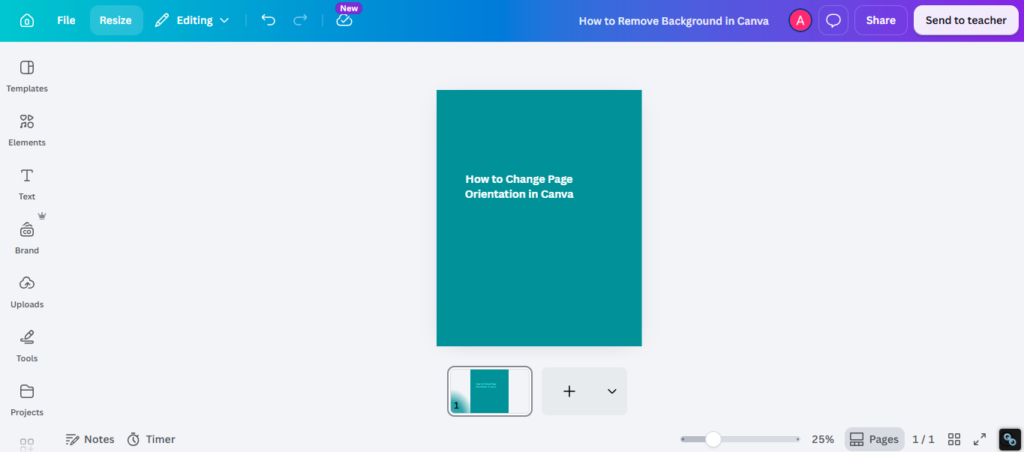
Step 2: Click Resize
Look for the Resize option in the top menu.
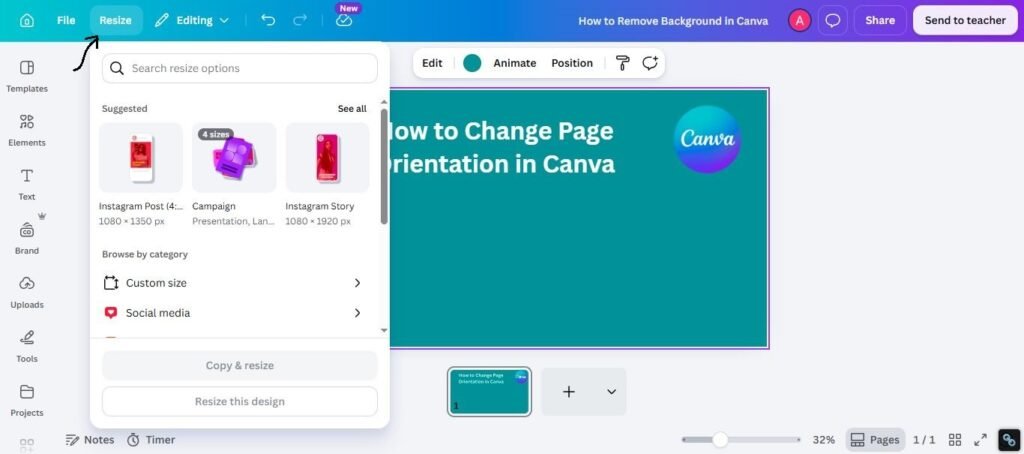
Step 3: Swap Dimensions
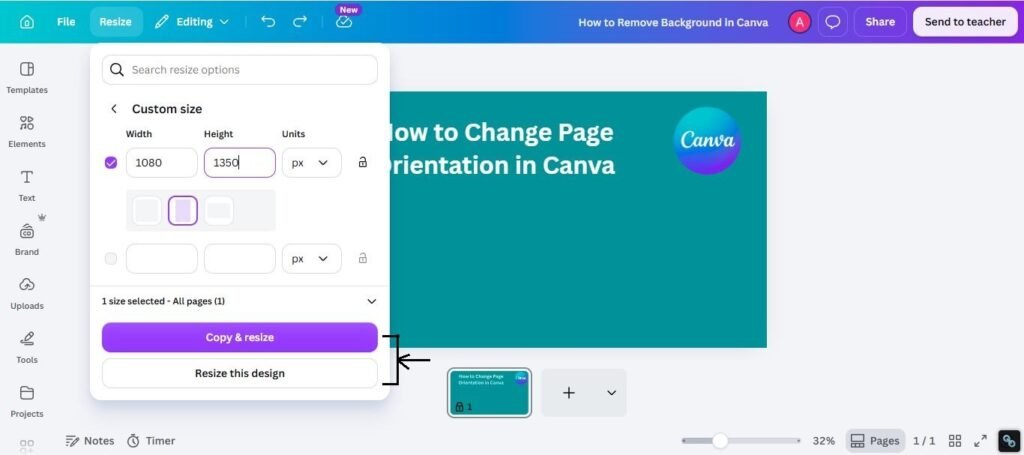
Change the width and height.
Example:
- Portrait: 1080 × 1350
- Landscape: 1350 × 1080
Step 4: Apply Resize
Choose whether to resize the current design or create a copy.
Step 5: Review Layout
Check text, images, and spacing after resizing.
How to Change Portrait to Landscape in Canva
This is one of the most common needs.
Best For:
- Flyers
- Documents
- Menus
- Guides
- Worksheets
Quick Method:
- Open Resize
- Make width larger than height
- Apply changes
- Rearrange design elements
How to Change Landscape to Portrait in Canva
Useful for mobile-friendly formats.
Best For:
- Instagram posts
- Stories
- Vertical posters
- Reels covers
- Phone-first graphics
Quick Method:
- Open Resize
- Make height larger than width
- Apply changes
- Reposition items
How to Change A4 Orientation in Canva
A4 documents often need switching.
Example Sizes:
- Portrait A4 = 210 × 297 mm
- Landscape A4 = 297 × 210 mm
Just swap the values and adjust the layout.
Great for:
- Reports
- Certificates
- Worksheets
- Print documents
Why Elements Move After Resizing
This is normal after orientation changes.
Common Issues:
- Text boxes become too wide
- Images crop badly
- Spacing breaks
- Icons shift positions
Fix It Fast:
- Re-center key elements
- Resize text boxes
- Adjust margins
- Recheck alignment
Best Tips Before Changing Orientation
Use these practical tips:
1. Save Original Version
Keep a backup before resizing.
2. Use Simple Layouts
They adapt better after changes.
3. Check Readability
Text may need resizing.
4. Use Guides
Alignment tools save time.
5. Test Final Export
Always preview before sending.
Canva Free vs Paid Resize Options
Some resize features can depend on your plan and Canva updates.
If Resize Is Missing
You can still:
- Create a new custom size design
- Copy elements manually
- Rebuild layout faster with templates
Even without advanced tools, orientation changes are still possible.
Expert Tip
After testing Canva layouts for proposals, client presentations, menus, and marketing assets, I have found that many users try to force old layouts into new dimensions. Sometimes resizing works. Sometimes rebuilding the layout cleanly is faster and looks better.
If you are unsure where to start, use:
- Save original file
- Resize copy
- Fix spacing first
- Check mobile view
- Export final version only after review
That workflow saves time in real projects.
Frequently Asked Questions
Use Resize or custom dimensions, then swap width and height values.
Yes. Make the width larger than the height.
Elements often need manual adjustment after orientation changes.
Yes. Swap A4 dimensions from portrait to landscape or the reverse.
Usually orientation is handled through resizing, not a simple page rotation button.
Final Thoughts
Honestly, knowing how to change page orientation in Canva is like having a quick shortcut to fix any messy layout. It does not matter if you are designing a tall menu or a wide presentation slide—flipping your page the right way instantly makes your work look neat and professional.
The biggest secret is simply keeping things basic. Choose your page direction before you start, move your text carefully when you resize, and check your spacing before saving. While design trends will come and go, having a clean, easy-to-read structure is something that will never go out of style!

I’m Faraz, the founder and lead content strategist at The Vistly. With a background in digital marketing, I lead content and design strategy for the site, working alongside a small team of designers to create practical Canva tutorials, font pairings, and design resources for creators, small businesses, and marketers around the world. My goal with The Vistly is to make professional-quality design accessible to anyone, no design degree required.