
How to Create Instagram Carousel in Canva (2026): Beginner Guide to Posts That Get Swipes, Saves, and Shares
Many people post on Instagram every week and still get weak results.
Low reach.
Low engagement.
No leads.
Often the problem is not effort. It is the content format.Single-image posts can work, but carousels often give users more reasons to stop, swipe, save, and share. That is why creators, brands, agencies, and businesses love carousel content.The good news? You do not need advanced design skills to make them. Canva makes carousel creation beginner-friendly and fast.This guide shows how to create Instagram carousels in Canva that look good and perform better.
If you want to improve your Canva designs even further, these related guides can help you choose better fonts, create stronger layouts, and make more engaging social media content:
- Canva Pinterest Post (2026): How to Create Pins That Get Clicks, Saves, and Traffic
- Best Canva Fonts for Logos
- Canva Free vs Pro (Honest Comparison for 2026)
What Is an Instagram Carousel?
An Instagram carousel is one post with multiple images or slides users swipe through.
Instead of saying everything in one image, you tell a story across several slides.
Popular uses:
- Educational tips
- Before and after results
- Step-by-step tutorials
- Product benefits
- Case studies
- Storytelling content
- Personal branding posts
- Testimonials
- Lead generation content
Why Carousels Work So Well
Carousels often create stronger engagement because they invite interaction.
When users swipe, pause, save, or share, the platform gets positive signals.
Carousels are powerful for:
- More time spent on post
- Higher engagement potential
- Better saves
- Better shares
- More educational depth
- Stronger trust building
- Better lead generation
One good carousel can do more than many weak single posts.
Master Carousel Success Table
| Element | What to Do | Why It Matters | Pro Tip |
| First Slide Hook | Grab attention instantly | Decides swipe rate | Make curiosity strong |
| Slide Flow | Organize ideas clearly | Keeps viewers moving | One idea per slide |
| Design Consistency | Use same style across slides | Feels professional | Repeat colors/fonts |
| Readability | Easy text size and spacing | Mobile users need clarity | Keep it clean |
| Value | Teach or solve something | Increases saves | Be useful fast |
| Visual Balance | Use space wisely | Better experience | Avoid clutter |
| CTA Slide | Tell user next step | Boosts action | Save, share, DM, follow |
| Branding | Add identity subtly | Builds recognition | Keep logo minimal |
| Export Quality | Sharp images | Better first impression | Use high resolution |
| Testing | Try different hooks | Improves results | Covers matter a lot |
Best Size for Instagram Carousel in Canva
Choose Instagram post dimensions designed for feed content.
Most creators use square or portrait layouts depending on style and content depth.
Practical Tip:
Portrait layouts often take more screen space and can attract attention better in the feed.
Choose one style and stay consistent with your brand.
How to Create an Instagram Carousel in Canva
Step 1: Open Canva
Search for Instagram carousel templates or create a custom Instagram post design.
Step 2: Add Multiple Pages
Each page becomes one carousel slide.
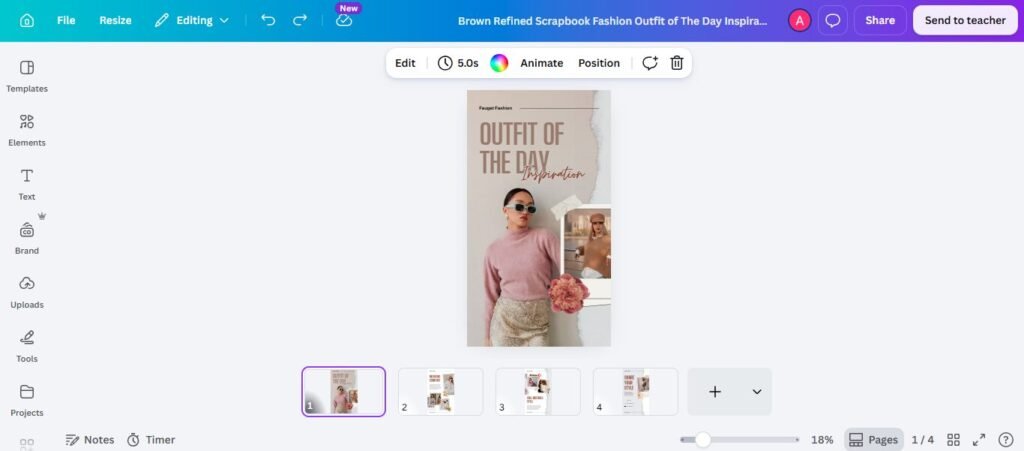
Step 3: Plan the Content Flow
Before designing, know what each slide will say.
Example:
- Hook
- Problem
- Tip 1
- Tip 2
- Tip 3
- Summary
- CTA
Planning first saves time.
Step 4: Design Slide One Carefully
This is your most important slide.
If slide one fails, the rest may never be seen.
Step 5: Keep Slides Consistent
Use the same:
- Fonts
- Colors
- Style
- Layout rhythm
- Brand tone
Choosing the right combination of fonts can also make your carousel feel more polished. Explore these best Canva font pairings for ideas that work across social media designs.
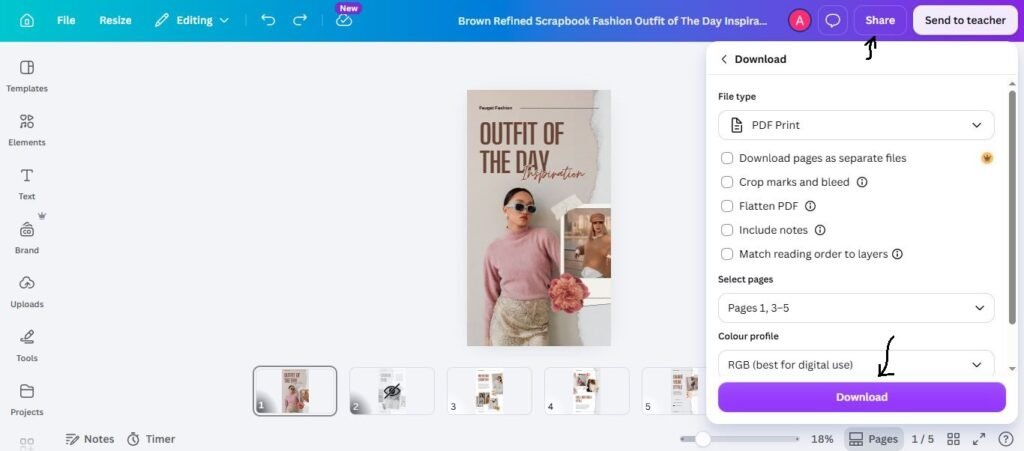
Step 6: Export All Slides
Download high-quality images and upload them in correct order to Instagram.
The Best Carousel Structure
Many creators post random slides. Better results usually come from structure.
Proven Flow:
Slide 1: Hook
Make them stop.
Examples:
- 5 SEO Mistakes Killing Your Traffic
- Why Your Content Is Not Converting
- Canva Tips You Need Today
Slides 2–5: Value
Teach, explain, prove, or guide.
Final Slide: CTA
Tell them what to do next.
Examples:
- Save this post
- Share with a friend
- Follow for more
- DM me “SEO”
- Comment your question
Best First Slide Hook Ideas
Your first slide is like a thumbnail and headline combined.
Strong hook styles:
- Mistakes to avoid
- Step-by-step guide
- Hidden tips
- Fast results
- Beginner mistakes
- Checklist
- Before vs after
- Truth nobody tells you
A clear hook often beats a fancy design.
Best Carousel Types by Goal
Educational Carousel
- Teach useful tips.
Best for coaches, marketers, educators.
Sales Carousel
- Show pain → solution → offer.
Best for businesses and service providers.
Story Carousel
- Share journey and lessons.
Best for personal brands.
Portfolio Carousel
- Show work examples.
Best for freelancers and agencies.
Testimonial Carousel
- Show client wins.
Best for trust building.
For branded and visually consistent social content, choosing the right typography also matters. You can explore these aesthetic Canva fonts for social posts and branding.
How Agencies Use Canva Carousels
Agencies can turn carousels into monthly recurring services.
Examples:
- 12 educational posts per month
- 8 lead-gen carousels
- Testimonial series
- Brand authority content
This becomes a scalable offer.
How Bloggers Repurpose Content into Carousels
One blog post can become multiple carousels.
Example article:
“Best Canva Fonts”
Carousel ideas:
- 7 Canva Fonts for Logos
- Elegant Canva Fonts You Should Try
- Free Canva Fonts for Branding
One idea should feed many platforms.
Seamless Carousel Method
Some creators use one wide background image split across multiple slides.
This creates a connected swipe experience.
Use it when:
- Storytelling matters
- Visual reveal matters
- Premium brand look matters
But content clarity matters more than fancy effects.
Common Canva Carousel Mistakes
- Weak first slide
- Too much text
- Tiny fonts
- Busy layouts
- Random slide order
- No CTA
- Inconsistent branding
- Low contrast colors
- Poor export quality
- Posting without strategy
Pretty slides alone do not guarantee results.
Canva Tips for Faster Workflow
Use Canva smarter, not harder.
Speed Tips:
- Save brand kit
- Duplicate winning templates
- Reuse layouts
- Keep content frameworks ready
- Create batches weekly
- Build content libraries
Systems save time.
FAQs
Yes, especially for beginners, businesses, and fast workflows.
Use enough slides to deliver value clearly without dragging.
They often perform strongly because users interact more.
Usually yes. Guide users toward next action.
Yes, many businesses need regular content
Final Advice
Keeping the exact step-by-step checklist style of your original draft.
If I were in your place today, here is the simple plan I would follow to grow on Instagram:
- Pick one single topic to focus on.
- Design 3 easy carousel templates.
- Write strong, catchy titles to grab attention.
- Post your content every single week.
- Check your saves and shares to see what people love.
- Make your most popular posts even better.
- Turn this routine into a simple weekly habit.
On Instagram, people’s attention moves fast. Creating helpful, multi-page carousel posts is the absolute best way to keep them coming back for more!

I’m Faraz, the founder and lead content strategist at The Vistly. With a background in digital marketing, I lead content and design strategy for the site, working alongside a small team of designers to create practical Canva tutorials, font pairings, and design resources for creators, small businesses, and marketers around the world. My goal with The Vistly is to make professional-quality design accessible to anyone, no design degree required.