How to Curve Text in Canva (Fast & Easy Guide for 2026)
Bending your text in Canva sounds easy, but it can be really tricky when you actually try to do it. Lots of people click around the screen, get confused, and waste time. They end up with flat logos or boring thumbnails that just look too plain. This happens to beginners, YouTubers, and students every single day.
But changing the shape of your words changes everything! Bending your text makes any design look cooler and more professional in just a few seconds. It helps your work stand out without needing any hard skills. In this guide you will find the fastest way to curve text, fix easy mistakes, and make your graphics look awesome.
Quick Answer
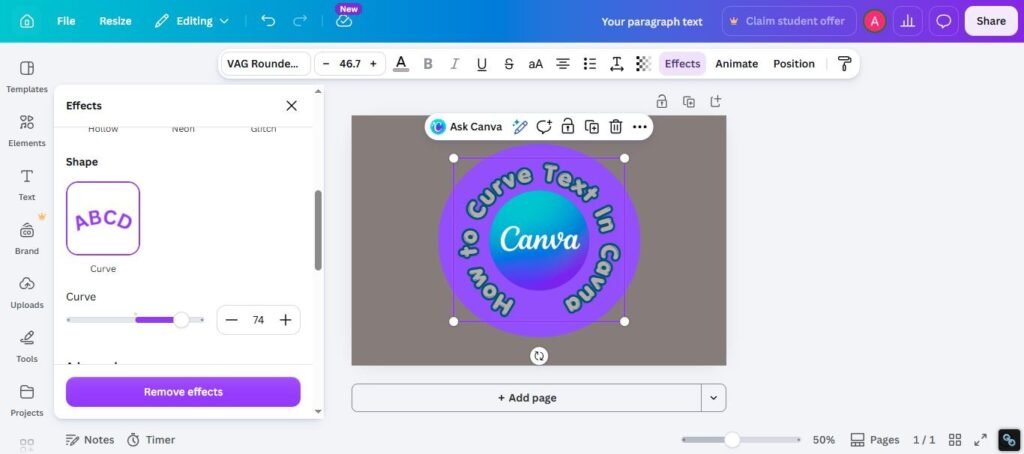
To curve text in Canva, add a text box, select the text, click Effects, choose Curve, then move the slider to bend the text. Use positive values for top arcs and negative values for bottom arcs. This is the fastest way to create curved headings, badge text, logo text, and circular designs.
Best Ways to Curve Text in Canva
| Method | Best For | Difficulty | Why It Works |
| Curve Effect | Quick Arches | Easy | Fastest built-in option |
| Circle Text Setup | Logos & Badges | Easy | Great for round branding |
| Negative Curve | Bottom Arc Text | Easy | Perfect for badge bottoms |
| Duplicate Text Method | Full Circle Text | Medium | More control over layout |
| Curve + Shadow Combo | Headlines | Medium | Stronger visual impact |
How to Curve Text in Canva on Desktop
This is the easiest method for most users.
Step 1: Open Your Design
Create a new Canva design or open an existing project.
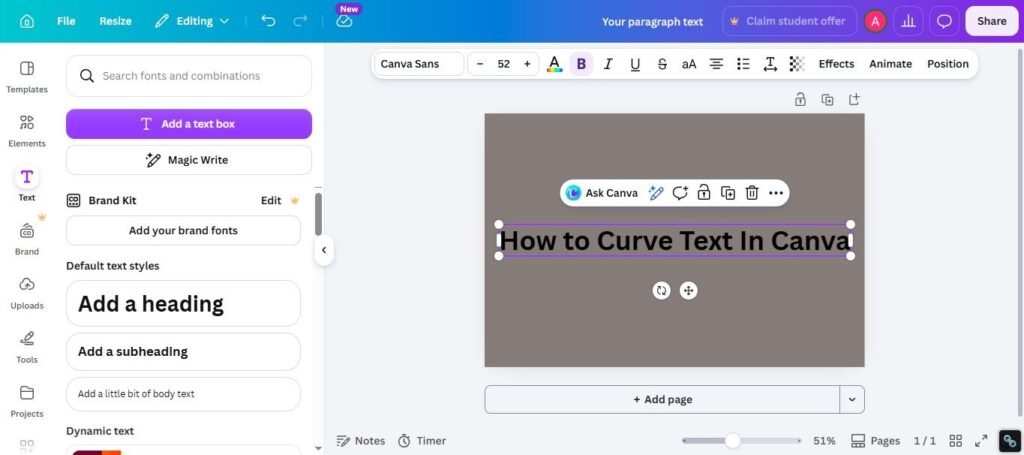
Step 2: Add Text
Click Text and insert a heading or text box.
Step 3: Select the Text
Click directly on the text you want to bend.
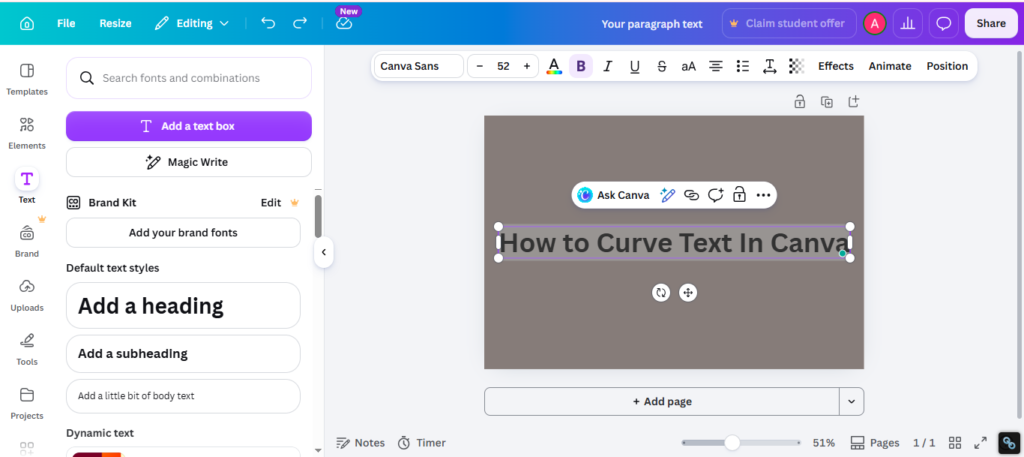
Step 4: Open Effects
At the top toolbar, click Effects.
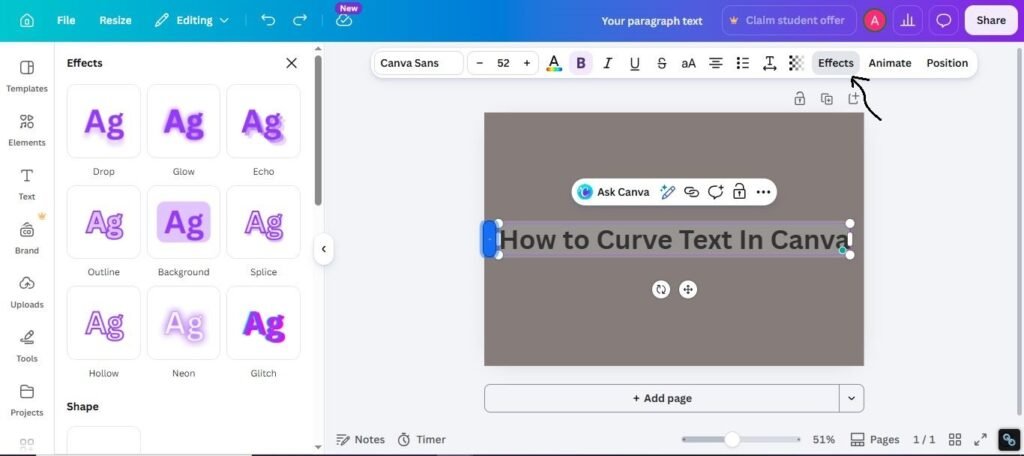
Step 5: Choose Curve
Select the Curve effect.
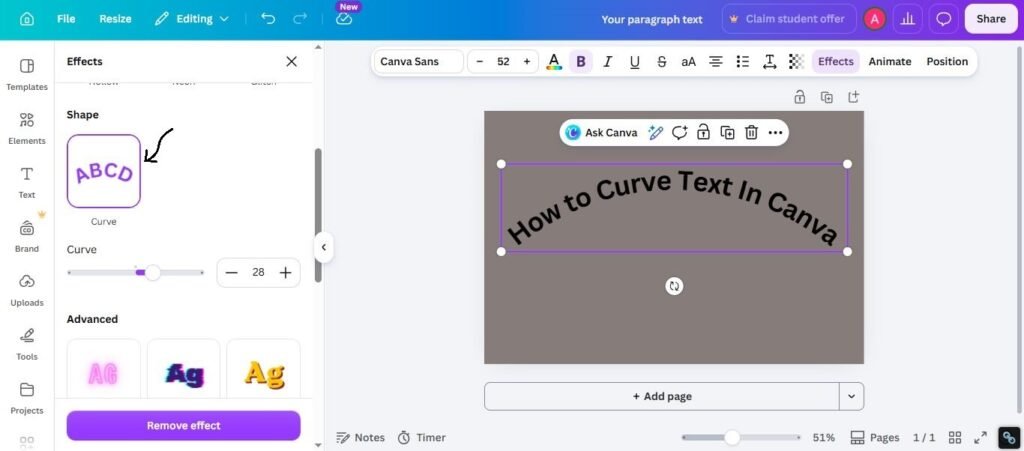
Step 6: Adjust the Slider
Move the slider:
- Right side = upward curve
- Left side = downward curve
Step 7: Resize and Position
Adjust size, spacing, and placement.
How to Make Circle Text in Canva
Circle text is popular for logos, badges, stamps, and labels.
Fast Method:
Use two text boxes.
Top Text:
- Add text
- Apply positive curve
- Place at top of circle
Bottom Text:
- Duplicate text box
- Change text
- Apply negative curve
- Rotate and place at bottom
This creates a full circular text effect.
How to Use Curved Text for Logos
Curved text works well for:
- Coffee shop logos
- Barbershop badges
- Clothing labels
- Podcast covers
- Event emblems
Best Practice:
Keep the curve subtle. Extreme bends often look cheap.
Best Fonts for Curved Text in Canva
Not every font curves well. Bold and clean fonts usually perform better.
Best picks:
- Anton
- League Spartan
- Bebas Neue
- Archivo Black
- Cinzel
- Oswald
- Poppins Bold
Thin script fonts can become harder to read when curved.
Best Curve Settings for Better Results
Use these practical ideas:
For Logos
- Small to medium curve
- Bold font
- Balanced spacing
For Badges
- Stronger top and bottom arcs
- Center icon in middle
For Thumbnails
- Light curve only
- Large bold text
- Strong contrast colors
For Social Posts
- Soft curve
- Minimal wording
- Clean background
Common Problems and Fixes
Curve Option Missing
Try:
- Updating Canva
- Refreshing browser
- Selecting text first
- Checking Effects menu
Text Looks Distorted
Try:
- Reduce curve amount
- Increase font size
- Use a bolder font
Hard to Read
Try:
- Less curve
- Shorter text
- Better spacing
- Stronger contrast
Bottom Text Looks Wrong
Try:
- Use negative curve
- Rotate correctly
- Reposition manually
How to Make Curved Text Look Better
Use these simple tips:
1. Keep Words Short
Long sentences curve badly.
2. Use Bold Fonts
They hold shape better.
3. Avoid Extreme Curves
Subtle bends usually look cleaner.
4. Balance the Layout
Center your text properly.
5. Preview Before Export
Zoom out and test readability.
Expert Tip
After testing Canva text effects across logos, posters, badges, and thumbnails, I have found that small curve adjustments usually look more professional than dramatic ones. Many users overdo the slider. Clean subtle curves often win.
If you are unsure where to start, use:
- Anton
- Medium curve
- Strong contrast colors
- Short headline text
That setup works in many real projects.
Frequently Asked Questions
Select your text, click Effects, choose Curve, then move the slider.
Yes, many users can access curved text tools in Canva Free, though features may vary.
Use two curved text boxes. One for top arc and one for bottom arc.
Anton, League Spartan, Bebas Neue, and Archivo Black are strong choices.
Your app version, browser, or editor layout may need updating.
Final Thoughts
Bending your words into a curve in Canva is one of the best shortcuts to better graphics. It gives your design a quick upgrade and catches people’s attention right away. It is a fantastic trick for social media posts, logos, or any creative project you are working on.
From real experience, the neatest designs are always the simplest ones. Stick to strong fonts, keep your text short, and use a smooth, gentle curve. Extra effects come and go, but making your text clean and easy to read never goes out of style
Explore more practical Canva guides from The Vistly to learn how to work with text, choose the right fonts, and create stronger designs.
Here are a few more Canva guides you may find useful:
- How to Outline Text in Canva — Learn how to add bold outlines and make your text stand out.
- How to Add Links in Canva (Fast & Easy Guide for 2026) — Find out how to add clickable links to your Canva designs.
- Best Canva Font Pairings (Free Combinations That Actually Work) — Discover font combinations that make your designs look balanced and professional.
- Best Canva Fonts for Logos — Choose fonts that work well for clean and memorable logo designs.
- Best Sans Serif Fonts on Canva — Explore simple and modern fonts that are easy to read.

I’m Faraz, the founder and lead content strategist at The Vistly. With a background in digital marketing, I lead content and design strategy for the site, working alongside a small team of designers to create practical Canva tutorials, font pairings, and design resources for creators, small businesses, and marketers around the world. My goal with The Vistly is to make professional-quality design accessible to anyone, no design degree required.