
Canva Mail Merge (Fast & Easy Guide for 2026)
Many people want to learn about Canva mail merge to save hours of boring, repetitive work. But when they open the app, they get confused! This is because Canva uses different names like “Bulk Create” or “Data Autofill” instead of calling it a traditional mail merge. Users search for one term, then open Canva and cannot find the exact button they expected. They want personalized certificates, invitations, business cards, postcards, labels, or client assets, yet the workflow feels unclear. This happens to beginners, teachers, and business owners every single day!
Creating one design manually is easy. Creating 200 personalized versions by hand is not. That is why this guide explains Canva mail merge, the fastest workflows, common use cases, and how to avoid mistakes.
Quick Answer
Canva mail merge usually means using Bulk Create, Canva Sheets, or spreadsheet data to generate multiple personalized designs from one template. Connect your data, map the fields, generate all versions, then download or share the final files. This is the fastest way to create certificates, invitations, name tags, cards, and bulk branded assets.
If you want to explore more Canva workflows, these related guides may help:
- How to Make Editable PDF for Etsy (2026): Beginner Guide to Sell Digital Products
- Digital Product Ideas (2026): Best Things to Sell Online for Beginners and Creators
- Canva Free vs Pro (Honest Comparison for 2026)
- How to Sell Canva Templates on Etsy (2026): Beginner Guide to Real Income
Best Ways to Use Canva Mail Merge
| Method | Best For | Difficulty | Why It Works |
| Bulk Create + CSV | Large Lists | Easy | Fastest bulk workflow |
| Canva Sheets | Ongoing Projects | Easy | Built-in data handling |
| Data Autofill | Flexible Workflows | Medium | More automation |
| Manual Entry | Small Lists | Easy | Quick one-off jobs |
| Template Duplication | Tiny Projects | Easy | No setup needed |
What Canva Mail Merge Means
Traditional mail merge usually means combining a template with spreadsheet data to create personalized outputs.
In Canva, that can mean:
- One certificate design with 100 names
- One invitation with different guest names
- One business card layout with multiple team members
- One postcard with different locations
- One badge design with different titles
Same template. Different data. Massive time savings. This same template-based approach can also be useful when creating digital products with Canva that need a repeatable design system.
How to Use Canva Mail Merge with Bulk Create
This is the easiest method for most users.
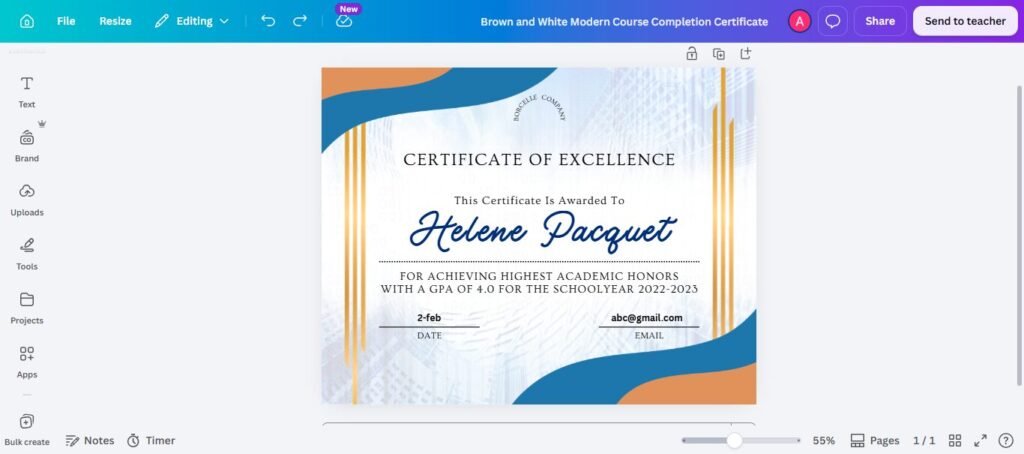
Step 1: Create Your Template
Design the certificate, card, invitation, or asset first.
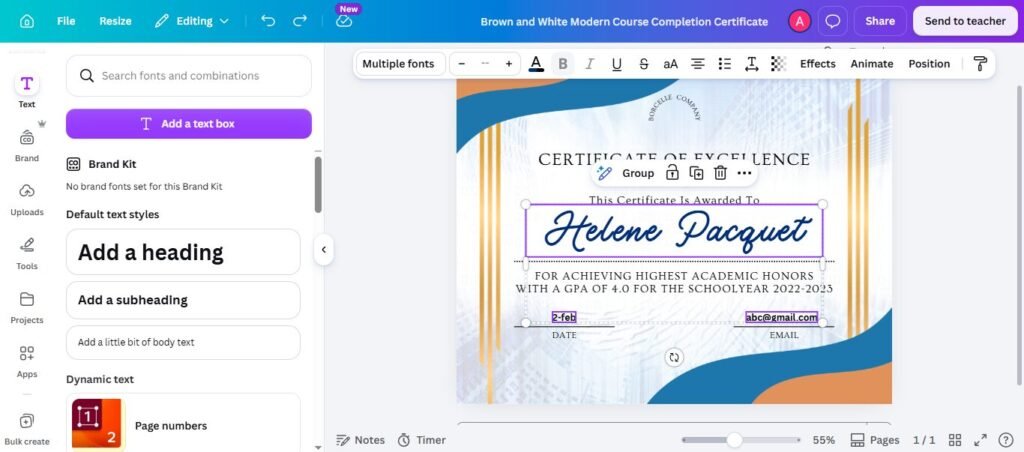
Step 2: Add Placeholder Fields
Use text areas where names, titles, emails, or other details will go.
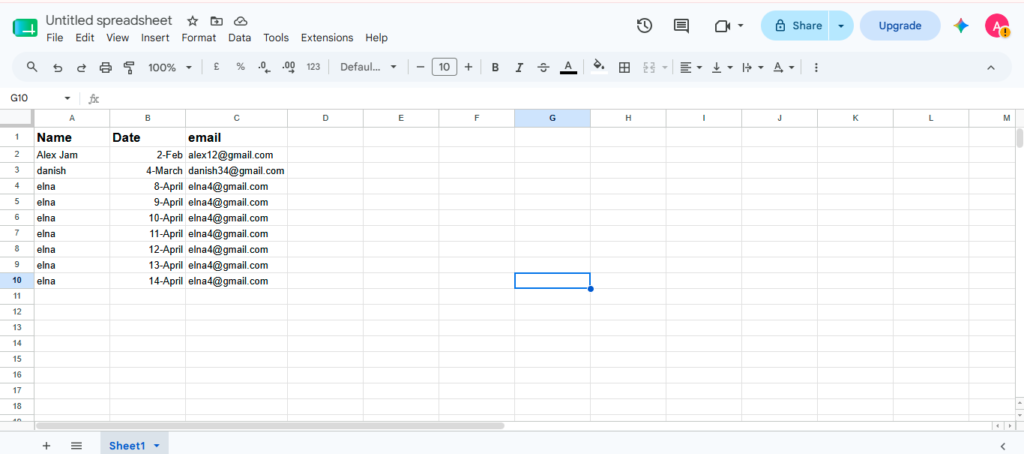
Step 3: Prepare Your Data
Use a spreadsheet with columns like:
- Name
- Company
- Role
- Date
Step 4: Connect the Data
Upload CSV or use supported spreadsheet tools.
Step 5: Match Fields
Link each column to the correct text area.
Step 6: Generate Designs
Create all personalized versions automatically.
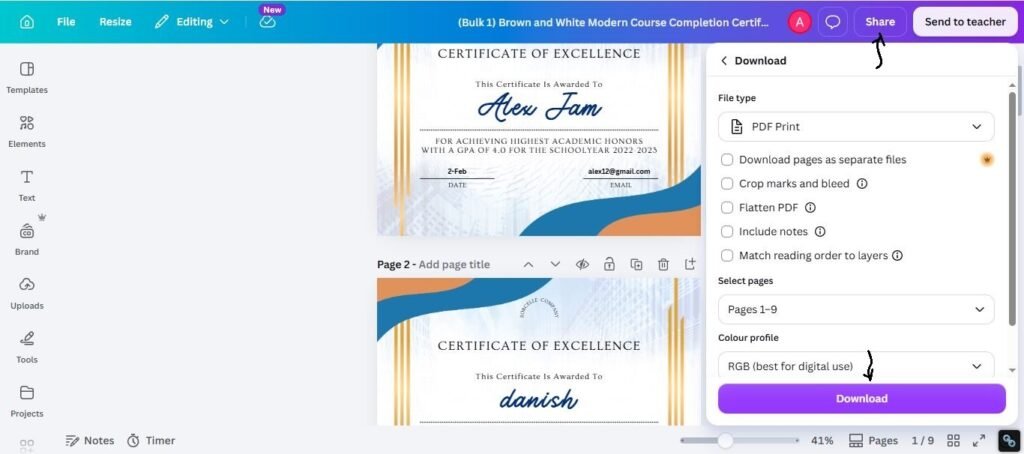
Step 7: Download or Share
Export final files for print, email, or delivery.
How to Use Canva Sheets for Bulk Designs
Useful for repeat workflows and internal systems.
Best For:
- Agencies
- Schools
- Event teams
- HR departments
- Marketing teams
Why It Helps:
- Easier updates
- Cleaner data management
- Better recurring workflows
If you create bulk assets often, this can save time long-term.
Canva Mail Merge for Certificates
One of the most popular use cases.
Great For:
- Course certificates
- Webinar certificates
- School awards
- Employee recognition
- Training completions
Smart Tips:
- Keep long names in mind
- Use readable fonts
- Test 3 sample names first
- Export PDF for printing
Canva Mail Merge for Invitations
Perfect for events and weddings.
Great For:
- Wedding invites
- Corporate events
- Birthday invites
- VIP passes
- Community events
Smart Tips:
- Use one elegant template
- Personalize guest names
- Keep spacing balanced
- Double-check spelling before export
Canva Mail Merge for Business Cards
Helpful for teams and agencies.
Great For:
- Staff cards
- Sales teams
- Event networking cards
- Franchise locations
- Multi-branch businesses
Smart Tips:
- Keep logo position fixed
- Use consistent branding
- Verify phone numbers carefully
Best Data Setup Tips
A clean spreadsheet prevents most errors.
Use Clear Column Names
Example:
- First Name
- Last Name
- Company
- Title
Keep Formatting Consistent
Use same date style, phone style, and naming style.
Remove Empty Rows
Blank rows can create broken outputs.
Check Spelling
Bad data creates bad designs.
Common Problems and Fixes
Text Overflows the Design
Try:
- Reduce font size
- Increase text box width
- Shorten wording
Wrong Data in Wrong Place
Try:
- Re-map fields carefully
- Check column names
- Preview before generating all files
Broken Layouts
Try:
- Test long names first
- Leave more spacing
- Use simpler templates
Duplicate Outputs
Try:
- Clean duplicate rows in spreadsheet
- Recheck imported file
How to Make Canva Mail Merge Look Better
Use these practical tips:
1. Design for Long Names
Not every user has a short name.
2. Keep Templates Clean
Simple layouts scale better.
3. Use Strong Hierarchy
Important fields should stand out.
4. Test Samples First
Never generate 500 files blindly.
5. Organize Final Downloads
Name folders clearly for delivery.
Expert Tip
After testing Canva bulk workflows for certificates, invitations, client assets, and branded cards, I have found that most problems come from messy spreadsheets, not Canva itself. If your data is clean, the process becomes much smoother.
If you are unsure where to start, use:
- Simple template
- 5 test rows first
- Clean CSV
- Check long names
- Final bulk export after preview
That workflow works in many real projects.
Frequently Asked Questions
It usually means using Bulk Create or spreadsheet data to generate personalized designs in bulk.
Yes. CSV files are commonly used for bulk personalization workflows.
Yes. Many users create personalized certificates quickly with one template.
Yes. It works well for personalized invites and guest lists.
Usually because of bad data formatting, field mapping issues, or layout problems.
Final Thoughts
Learning Canva mail merge is one of the smartest ways to save time when creating personalized designs at scale. Whether you build certificates, invitations, business cards, badges, or client assets, one strong template can become hundreds of finished files.
From real project experience, the best results usually come from keeping things simple. Use clean data, clear templates, test samples first, and only then run the full batch. Tools change, but smart systems continue to win.

I’m Faraz, the founder and lead content strategist at The Vistly. With a background in digital marketing, I lead content and design strategy for the site, working alongside a small team of designers to create practical Canva tutorials, font pairings, and design resources for creators, small businesses, and marketers around the world. My goal with The Vistly is to make professional-quality design accessible to anyone, no design degree required.