How to Flip an Image in Canva (Fast & Easy Guide for 2026)
Learning how to flip an image in Canva is a total game-changer for your layouts. Sadly, finding the right button can feel like a giant guessing game when you are starting out. Many users end up wasting time spinning photos manually, only to settle for awkward-looking compositions or mirrored selfies that look completely backward.
The good news is that changing the direction your photo faces is a fantastic trick for your designs. It instantly makes Instagram stories, product ads, and video thumbnails look sleek and balanced. You do not need crazy editing skills to make your projects look beautiful. This guide will show you the quickest shortcut to straight horizontal or vertical flipping and how to fix easy mistakes along the way.
If you’re working on different Canva designs, these related guides can help you improve your images, layouts, and overall design workflow:
- How to Remove Background in Canva (Fast & Easy Guide for 2026)
- How to Create Mockups for Etsy (2026): Beginner Guide to More Clicks and Sales
- Canva Pinterest Post (2026): How to Create Pins That Get Clicks, Saves, and Traffic
- How to Change Page Orientation in Canva (Fast & Easy Guide for 2026)
- Canva Free vs Pro (Honest Comparison for 2026)
Quick Answer
To flip an image in Canva, select the image, click Flip, then choose Flip Horizontal or Flip Vertical. Horizontal flip mirrors the image left to right, while vertical flip reverses it top to bottom. This is the fastest way to fix composition, mirror photos, and improve design balance.
Best Ways to Flip an Image in Canva
| Method | Best For | Difficulty | Why It Works |
| Flip Horizontal | Mirror Photos | Easy | Fastest common use |
| Flip Vertical | Creative Effects | Easy | Unique layouts |
| Product Image Flip | Ecommerce | Easy | Better composition |
| Mobile Flip Method | Phone Users | Easy | Quick edits |
| Logo/Icon Flip | Layout Control | Easy | Direction adjustment |
What Flip Means in Canva
Flipping is different from rotating.
Flip Horizontal
The image swaps left and right.
Best for:
- Mirror selfies
- Product direction changes
- Facing text or CTA
- Better composition
Flip Vertical
The image swaps top and bottom.
Best for:
- Creative effects
- Reflection styles
- Special layouts
- Experimental graphics
Flip vs Rotate
- Flip = mirror effect
- Rotate = turn by angle
Both are useful, but they solve different problems.
How to Flip an Image in Canva on Desktop
This is the easiest method for most users.
Step 1: Open Your Design
Create a new design or open an existing project.
Step 2: Add Your Image
Upload a photo or choose one inside Canva.
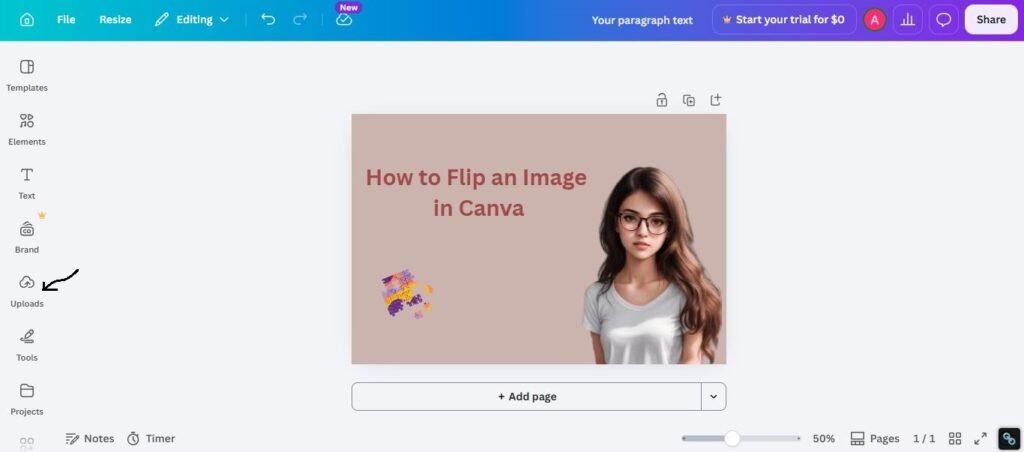
Step 3: Select the Image
Click directly on the image.
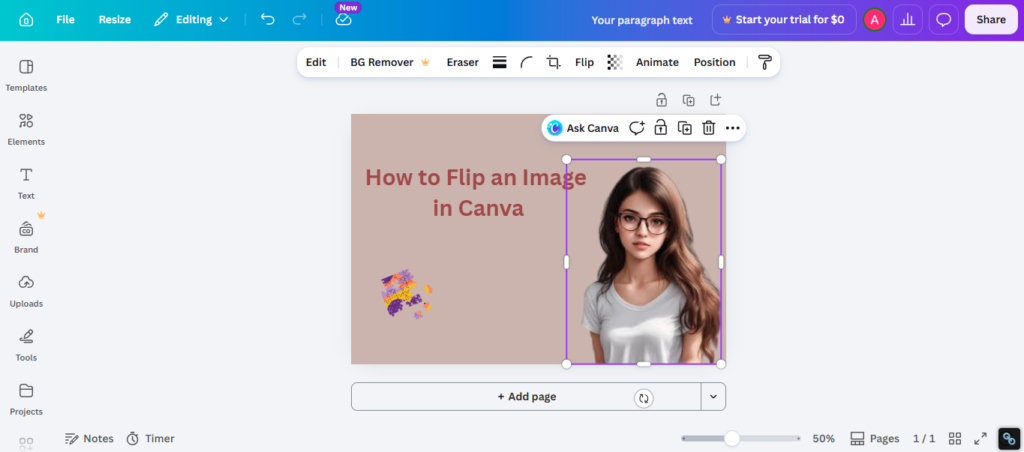
Step 4: Click Flip
Look for the Flip option in the top toolbar.
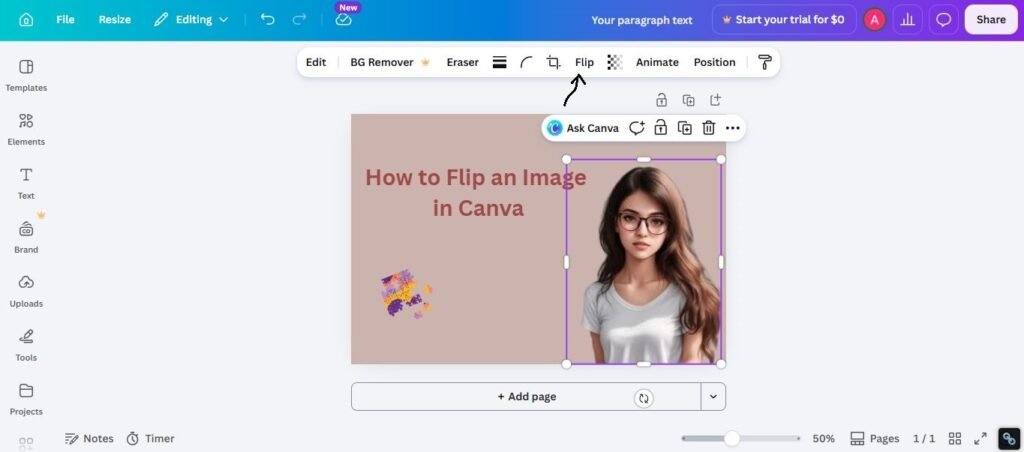
Step 5: Choose Direction
Select:
- Flip Horizontal
- Flip Vertical
Step 6: Review the Result
Check if the new direction improves the layout.
Best Uses for Flipping Images in Canva
This small feature is useful in many real projects.
For Ecommerce
Make product images face the product title or CTA button.
For Thumbnails
Turn a person toward the headline text.
For Social Media Posts
Improve balance between subject and caption.
For Presentations
Align visuals with slide direction.
For Branding
Adjust icons and shapes for cleaner composition.
How to Mirror a Selfie in Canva
Many users want selfies to face the other direction.
Quick Method:
- Upload selfie
- Select image
- Flip Horizontal
- Review face direction
- Save file
This can instantly improve composition.
Best Tips Before Flipping an Image
Use these practical checks first.
1. Check Text Inside the Image
If the image contains text, flipping may reverse the letters.
2. Watch Product Details
Packaging labels can become unreadable after flipping.
3. Use Flip for Direction
Guide the viewer’s eyes toward your CTA or title.
4. Keep Natural Look
Some faces or objects may feel strange when mirrored.
5. Compare Both Versions
Sometimes original works better.
Common Problems and Fixes
Flip Option Missing
Try:
- Update Canva
- Refresh browser
- Select image first
Image Looks Wrong After Flip
Try:
- Use original version
- Only flip horizontally
- Reposition the image
Text Became Backwards
Try:
- Do not flip images containing text
- Edit text separately instead
Layout Still Feels Unbalanced
Try:
- Resize image
- Move placement
- Adjust spacing
How to Make Flipped Images Look Better
Use these practical tips:
1. Pair with Better Placement
Fliping alone is not enough. Reposition the image too.
2. Check Eye Direction
Faces looking toward text usually work better.
3. Keep Spacing Balanced
Leave room around the subject.
4. Test on Mobile
Composition changes on small screens.
5. Keep It Simple
Use flip only when it improves the design.
Expert Tip
After testing Canva designs for ads, thumbnails, product graphics, and social posts, I have found that flipping an image is often the fastest way to fix weak composition. Many users keep redesigning layouts when one horizontal flip would solve the issue in seconds.
If you are unsure where to start, use:
- Flip Horizontal
- Face toward headline
- Reposition image
- Check spacing
- Preview on mobile
That workflow works in many real projects.
Frequently Asked Questions
Select the image, click Flip, then choose Horizontal or Vertical.
Basic image editing tools are often available, depending on your Canva version and features.
Flip mirrors the image. Rotate turns it by angle.
Yes. Use Flip Horizontal.
Some photos, text, or product labels may not look natural when mirrored.
Final Thoughts
Mastering how to flip an image in Canva is all about making your graphics feel organized. When your pictures face the right direction, your entire design suddenly looks more professional. Whether you are working on an online store product, a presentation slide, or a Pinterest pin, this shortcut helps you win.
As you practice, just try to keep your designs clean and simple. Flip your pictures to create space, make sure any text in the photo is still easy to read, and check your alignment. Design trends come and go, but a well-balanced layout will make your work look great forever!

I’m Faraz, the founder and lead content strategist at The Vistly. With a background in digital marketing, I lead content and design strategy for the site, working alongside a small team of designers to create practical Canva tutorials, font pairings, and design resources for creators, small businesses, and marketers around the world. My goal with The Vistly is to make professional-quality design accessible to anyone, no design degree required.