
How to Make Background Transparent in Canva (Fast & Easy Guide for 2026)
Many people think that learning how to make background transparent in Canva is super easy. But when they actually download their finished logo, product graphic, or sticker, they get a bad surprise: an annoying white box behind their design! It looks perfect inside the editor, but the saved file is completely useless on other websites. This happens to beginners, freelancers, and online store owners every single day!
But here is the truth: the file type you choose is just as important as the design itself. A clear, see-through background lets you reuse your graphics anywhere, making them look clean and professional instantly. That is why this guide shows you the fastest ways to make backgrounds transparent in Canva, fix easy mistakes, and save your files the perfect way.
Quick Answer
To make background transparent in Canva, click Share or Download, choose PNG, enable Transparent Background, then export your file. This is the fastest way to save logos, stickers, overlays, and graphics without a white or colored background
Best Ways to Make Background Transparent in Canva
| Method | Best For | Difficulty | Why It Works |
| Transparent Export | Logos | Easy | Fastest result |
| Background Remover + PNG | Product Images | Easy | Clean cutout |
| Transparent Watermark | Branding | Easy | Professional overlays |
| Sticker PNG Export | Social Media | Easy | Reusable graphics |
| Mobile Export Method | Phone Users | Easy | Fast on mobile |
How to Make Background Transparent in Canva on Desktop
This is the easiest method for most users.
Step 1: Open Your Design
Create a new design or open an existing project.
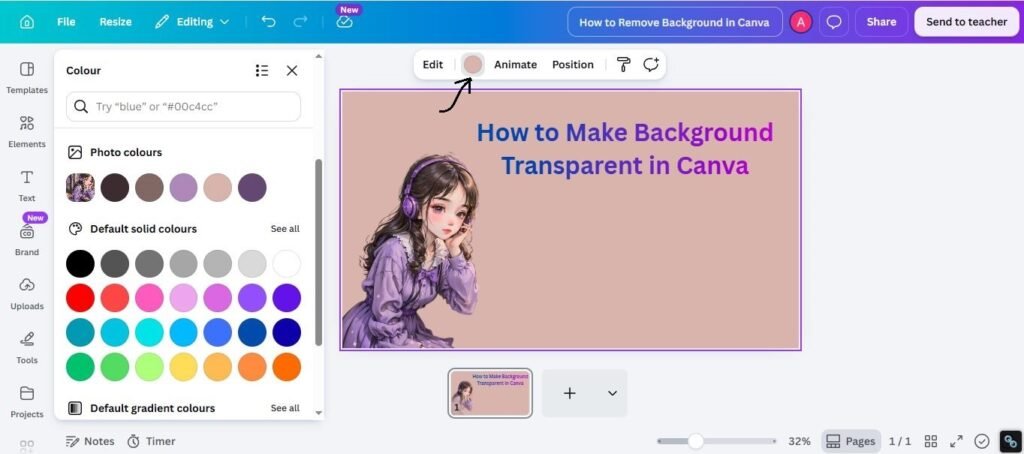
Step 2: Check the Background
Make sure your design uses no unwanted solid background color.
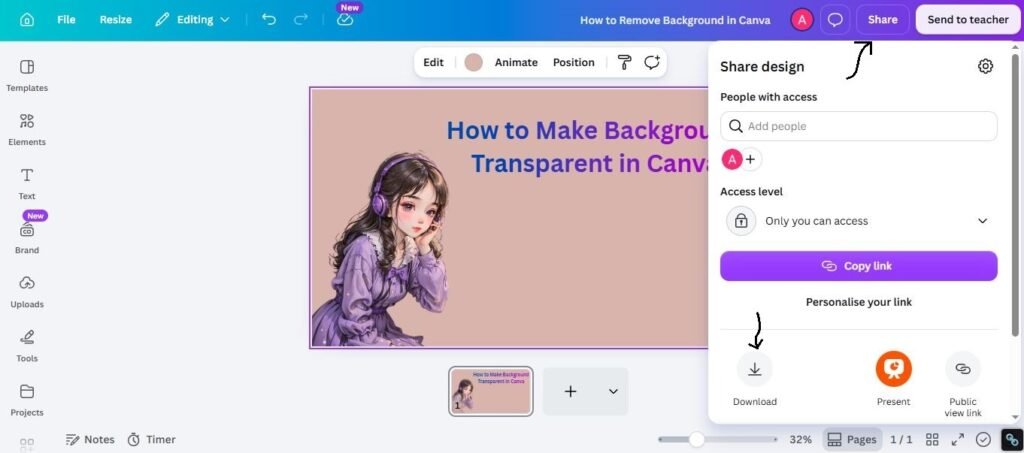
Step 3: Click Share or Download
Use the top-right menu.
Step 4: Choose PNG
Select PNG as the file type.
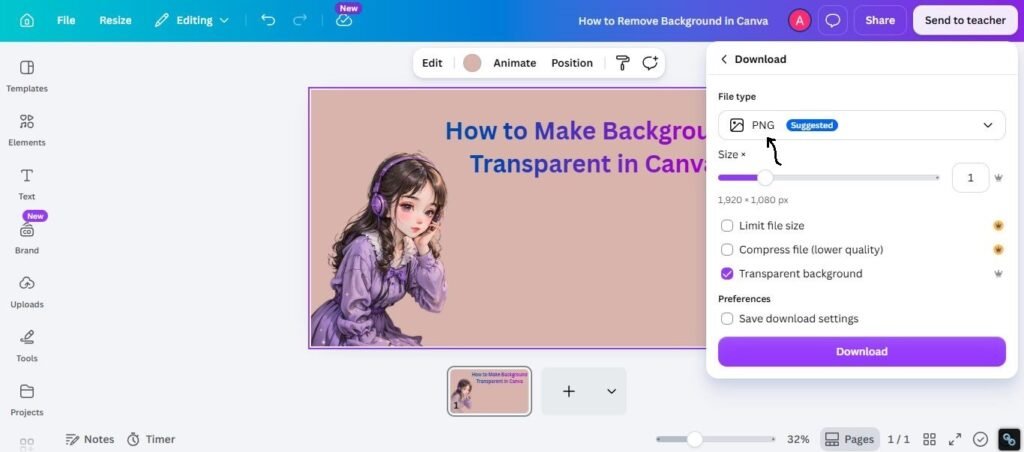
Step 5: Enable Transparent Background
Turn on the Transparent Background option.
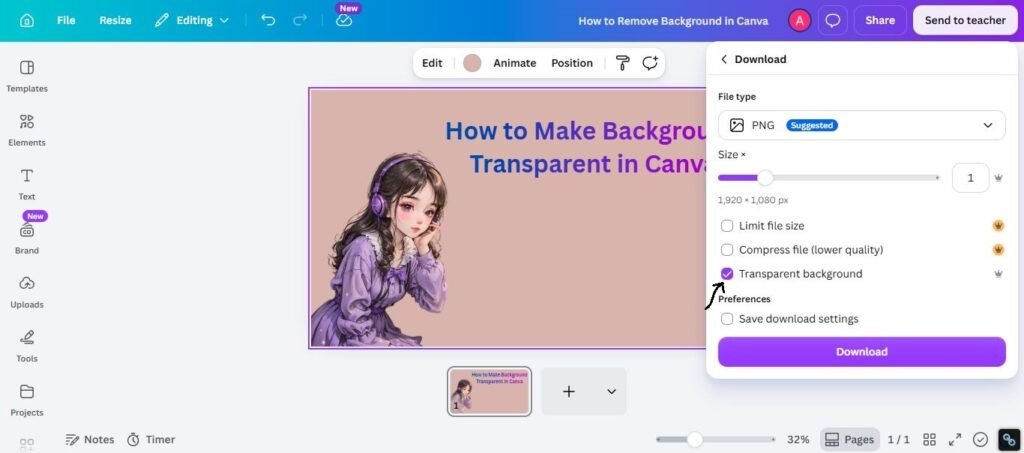
Step 6: Download the File
Export and save it to your device.
How to Save a Logo with Transparent Background
This is one of the most common use cases.
Best For:
- Business logos
- Watermarks
- Website headers
- Brand kits
- Social profile images
Smart Tips:
- Use high resolution PNG
- Keep logo centered
- Leave enough spacing around logo
- Test on dark and light backgrounds
Transparent logos are much easier to reuse later.
How to Make Product Images Transparent
Useful for ecommerce and ads.
Best Workflow:
- Remove original background if needed
- Keep only product visible
- Export as transparent PNG
Great for:
- Shopify stores
- Amazon images
- Product ads
- Promo banners
Clean product cutouts usually look more premium.
PNG vs JPG in Canva
Many users get confused here.
PNG
Best for:
- Transparent backgrounds
- Logos
- Stickers
- Graphics
- Better quality edges
JPG
Best for:
- Photos
- Smaller file size
- No transparency needed
If you need transparency, PNG is usually the correct choice.
Best Export Settings for Transparent Files
Use these practical tips:
For Logos
- PNG
- High quality
- Transparent background on
For Stickers
- PNG
- Sharp edges
- Medium to high size
For Website Graphics
- PNG
- Optimized dimensions
- Clear naming
For Watermarks
- Transparent PNG
- Lower opacity inside design if needed
Common Problems and Fixes
Transparent Option Missing
Try:
- Check your Canva plan
- Update app
- Refresh browser
- Confirm file type is PNG
White Background Still Showing
Try:
- Re-export file
- Make sure transparency was enabled
- Open in proper viewer
- Check if file was converted later
File Too Large
Try:
- Reduce dimensions
- Compress PNG
- Use only needed pages
Edges Look Rough
Try:
- Increase export quality
- Use cleaner source image
- Resize correctly
How to Make Transparent Designs Look Better
Use these practical tips:
1. Keep Edges Clean
Messy edges reduce quality.
2. Use Enough Resolution
Low resolution logos look weak.
3. Test on Different Backgrounds
Check dark and light surfaces.
4. Name Files Properly
Example: brand-logo-transparent.png
5. Keep Master Files Saved
Future edits become easier.
Frequently Asked Questions
Choose PNG during download, enable Transparent Background, then export.
Feature availability can depend on your account plan and current Canva tools.
PNG is the most common format for transparent backgrounds.
You may have exported the wrong file type or missed the transparency setting.
Yes. It makes logos easier to place anywhere professionally.
Final Thoughts
Honestly, knowing how to make background transparent in Canva is like having a secret shortcut for your online store or business. It does not matter if you are making cool stickers, logos, overlays, or product images—getting rid of the solid background makes your designs look neat and professional on any website. The biggest secret is simply keeping things basic. Just save your files as a PNG, check the transparency box, and double-check your work before sharing it with others. Trends will always change, but neat, clean designs will never go out of style!
Want to make your Canva designs more useful and professional? Explore these related Canva guides for better text effects, features, and digital products.
- How to Remove Background in Canva (Fast & Easy Guide for 2026) – Learn how to quickly remove unwanted backgrounds from product and portrait images.
- Canva Pinterest Post (2026)-Learn how to create attractive Pinterest graphics that grab attention and encourage clicks.
- How to Create Mockups for Etsy (2026): Beginner Guide to More Clicks and Sales – Learn how to create attractive mockups that showcase your products more professionally.
- Best Canva Fonts for Logos – Find professional Canva fonts for creating clean and memorable logo designs.
- Can I Use Canva Pro Elements to Sell on Etsy? (2026 Honest Guide) – Understand what you should know before using Canva elements in products you plan to sell.

I’m Faraz, the founder and lead content strategist at The Vistly. With a background in digital marketing, I lead content and design strategy for the site, working alongside a small team of designers to create practical Canva tutorials, font pairings, and design resources for creators, small businesses, and marketers around the world. My goal with The Vistly is to make professional-quality design accessible to anyone, no design degree required.