
How to Add Links in Canva (Fast & Easy Guide for 2026)
Creating a clickable button is a secret weapon for anyone sharing digital downloads online. Sadly, figuring out how to add links in Canva can feel like a total guessing game when you first try it. You can easily waste ten minutes clicking random menus, only to end up sending a presentation where none of your buttons actually do anything.
But once you know the shortcut, everything changes. Adding working links instantly makes your PDFs, school projects, and business layouts look like a professional made them. You do not need advanced tech skills to connect your pages to the web. Let’s look at the easiest ways to link your text and fix common uploading mistakes on your first try.
Quick Answer
To add links in Canva, select text, a button, image, or element, click the Link icon, paste your URL, and apply it. Export in a supported format such as PDF or use Canva websites/presentations where links stay clickable. This is the fastest way to create clickable PDFs, buttons, navigation links, and business call-to-action designs.
Best Ways to Add Links in Canva
| Method | Best For | Difficulty | Why It Works |
| Text Hyperlink | Simple CTAs | Easy | Fastest method |
| Button Link | Lead Magnets | Easy | Better conversions |
| Image Link | Portfolios | Easy | Visual call to action |
| Internal Page Link | Presentations | Easy | Smooth navigation |
| PDF Hyperlink Export | Downloads | Easy | Clickable documents |
How to Add Links to Text in Canva
This is the most common method.
Step 1: Open Your Design
Create a new Canva design or open an existing one.
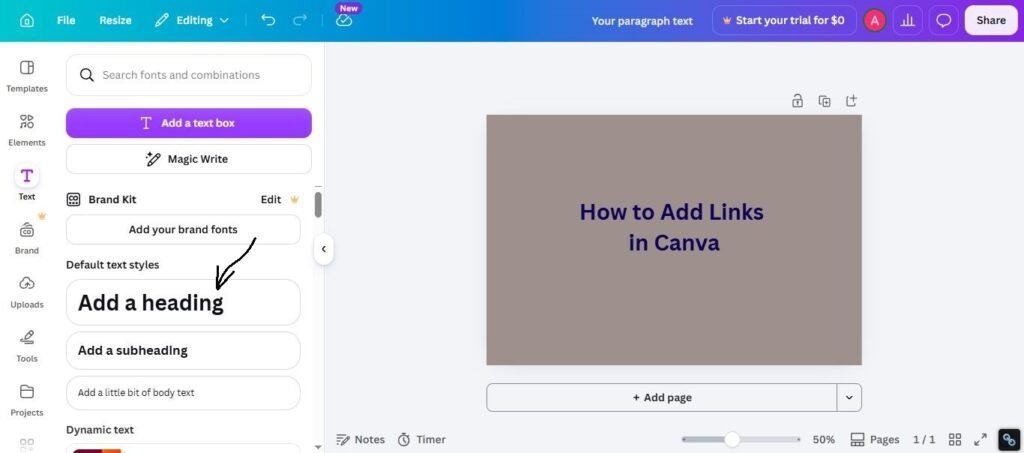
Step 2: Add Text
Insert a heading, paragraph, or CTA text.
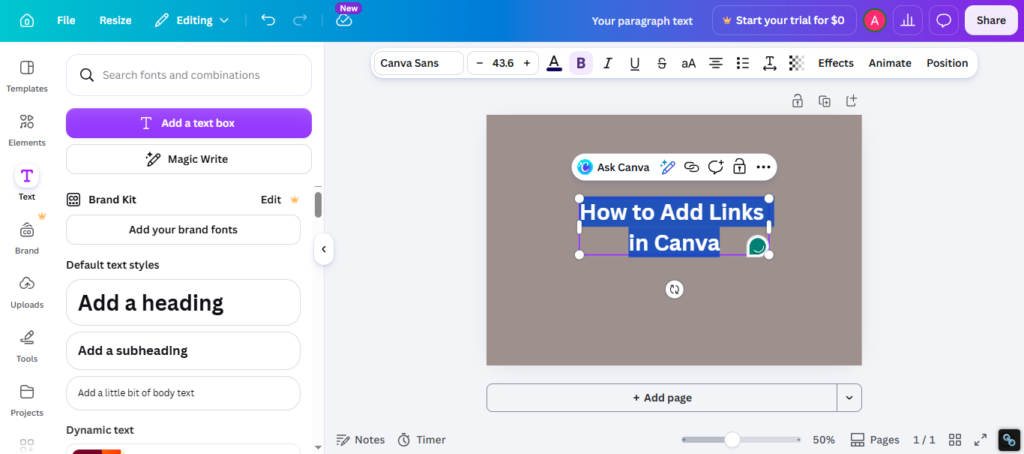
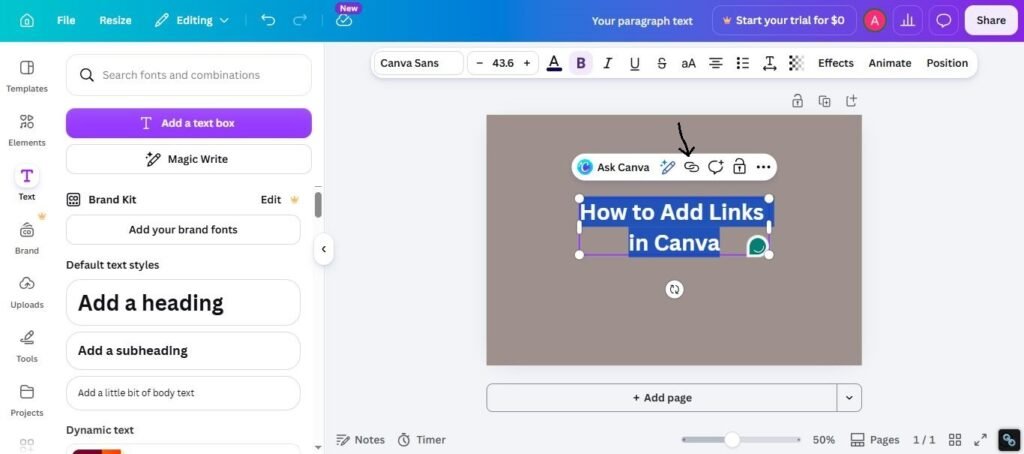
Step 3: Select the Text
Highlight or click the text box.
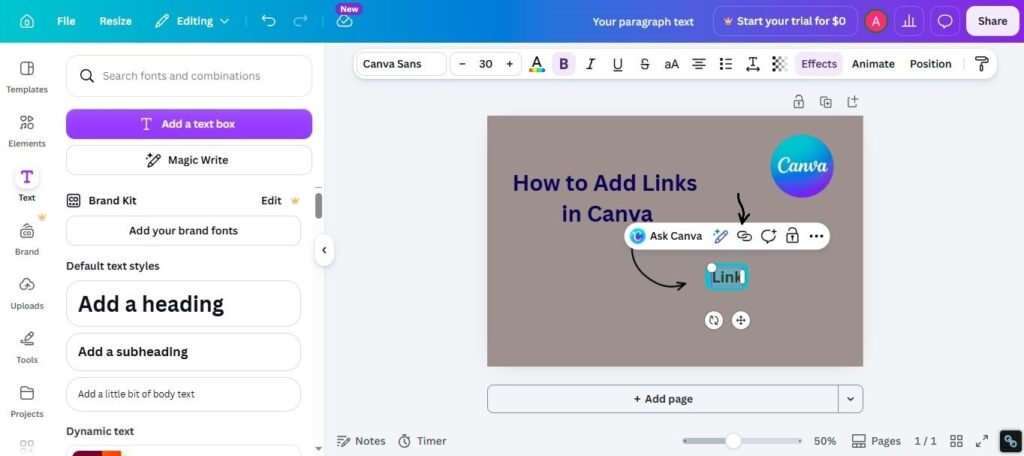
Step 4: Click the Link Icon
Look for the chain/link icon in the top toolbar.
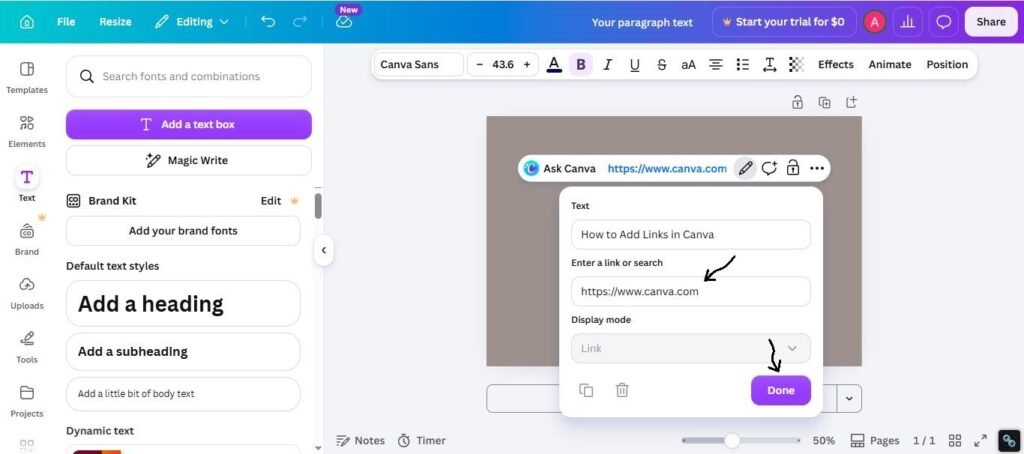
Step 5: Paste Your URL
Examples:
- Website homepage
- Product page
- Booking form
- Contact page
- Social profile
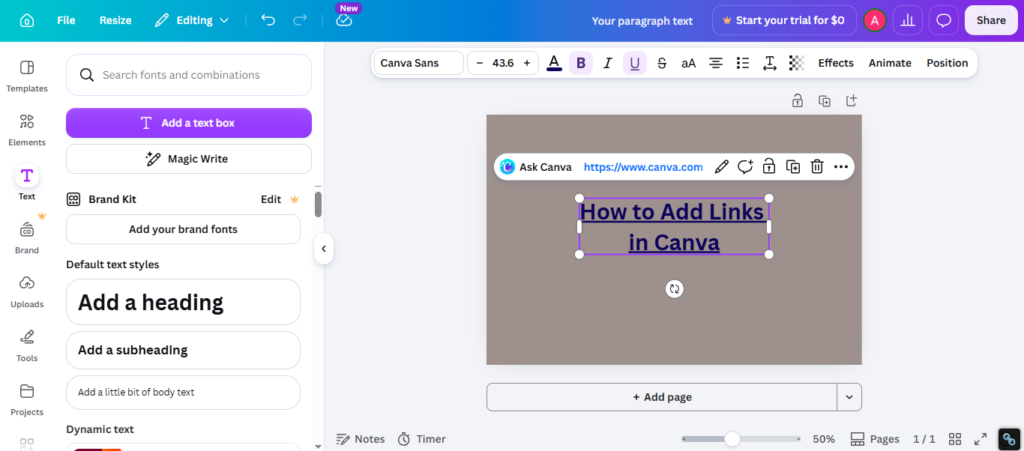
Step 6: Apply the Link
Save the link and test it later.
How to Add Links to Buttons in Canva
Buttons usually get more clicks than plain text.
Best For:
- Lead magnets
- Sales pages
- Ebook downloads
- Booking pages
- Newsletter signup
Steps:
- Add button element or shape
- Add button text
- Select the button or group
- Click Link icon
- Paste URL
- Apply changes
Clear buttons often convert better than small text links.
How to Add Links to Images in Canva
Images can also become clickable.
Best For:
- Portfolio galleries
- Product mockups
- Case studies
- Team photos
- Landing pages
Steps:
- Select image
- Click Link icon
- Paste URL
- Apply link
This works well for visual call-to-action designs.
How to Add Internal Page Links in Canva
Useful for presentations, planners, and interactive PDFs.
Best For:
- Presentations
- Digital planners
- Workbooks
- Multi-page guides
Example:
Click “Go to Pricing Page” → opens another page in same file.
Steps:
- Select text or button
- Click Link
- Choose page number or internal page option
- Apply
Best Export Formats for Clickable Links
Not every file keeps links active.
Best Options:
- PDF Standard
- PDF Print
- Canva Website
- Presentation share link
Usually Not Ideal for Links:
- PNG
- JPG
- Static image exports
If you export as image, links usually stop working.
Best Use Cases for Canva Links
Canva links are powerful for real business work.
For Agencies
Send proposal PDFs with booking links.
For Ecommerce
Link product graphics to store pages.
For Coaches
Add calendar booking buttons.
For Teachers
Create interactive worksheets.
For Creators
Make media kits and portfolios clickable.
Common Problems and Fixes
Link Not Clickable
Try:
- Export as PDF
- Use correct format
- Test after download
- Recheck URL
Wrong Page Opens
Try:
- Edit the link
- Paste correct URL
- Save again
Link Icon Missing
Try:
- Update Canva
- Refresh browser
- Select item first
Mobile Issues
Try:
- Use latest app version
- Zoom in
- Select correct element carefully
How to Make Canva Links Work Better
Use these practical tips:
1. Use Clear CTA Text
Example: Download Now, Book Call, Visit Store.
2. Make Buttons Obvious
Use strong contrast colors.
3. Test Every Link
Always click links before sending to clients.
4. Keep URLs Relevant
Send users exactly where they expect.
5. Use Fewer Better Links
Too many links can confuse users.
Expert Tip
After testing Canva files for client proposals, lead magnets, ebooks, and marketing assets, I have found that buttons usually outperform plain text links. Many users hide links inside small text. A clear visible CTA button gets better results in real projects.
If you are unsure where to start, use:
- Bold button
- Clear CTA text
- Short direct URL
- PDF export
- Final testing before sending
That setup works in many business cases.
Frequently Asked Questions
Select text, image, or element, click the Link icon, paste your URL, and apply it.
Yes, many users can add links depending on design type and export format.
Yes, PDF exports often keep clickable links active.
Wrong export format, incorrect setup, or unsupported output can cause issues.
Yes, internal page links can work in presentations and multi-page files.
Final Thoughts
Knowing how to add links in Canva is a total game-changer. It instantly fixes flat designs by turning your text and pictures into working buttons that guide your readers to the right spot. It works perfectly for everything from school presentations and planners to business proposals and ebooks.
From real experience, you get the best results when you don’t overcomplicate things. Stick to clean button styles, make your text link clearly, and always test the clicks yourself before sending it to anyone else. Fancy styles always change, but keeping your work helpful and easy to use never goes out of fashion.
Want to make your Canva designs more useful and professional? Explore these related Canva guides for better text effects, features, and digital products.
- How to Create Mockups for Etsy (2026): Beginner Guide to More Clicks and Sales — Make your digital products more attractive with professional-looking mockups.
- How to Outline Text in Canva — Learn how to add bold outlines and make your text stand out.
- How to Curve Text in Canva (Fast & Easy Guide for 2026)— Create curved headings, badge text, and circular designs in Canva.
- Canva Free vs Pro (Honest Comparison for 2026) — See which Canva plan gives you the features you need.
- How to Sell Canva Templates on Etsy (2026): Beginner Guide to Real Income — Turn your Canva designs into digital products and learn how to sell them.

I’m Faraz, the founder and lead content strategist at The Vistly. With a background in digital marketing, I lead content and design strategy for the site, working alongside a small team of designers to create practical Canva tutorials, font pairings, and design resources for creators, small businesses, and marketers around the world. My goal with The Vistly is to make professional-quality design accessible to anyone, no design degree required.